Listening guide · Resoluna
Try AI audio upscaling on a CD rip: a listening guide
Use a track from your own collection to explore a model-estimated high-frequency extension. This guide shows what file to choose, what the beta produces, and how to compare the new version with your original.
If you already own a CD rip, you have a familiar source for trying AI audio upscaling. Resoluna uses patterns in the available music, including the structure present at lower frequencies, to estimate a plausible high-frequency extension. It creates a new 24-bit / 96 kHz FLAC that you can listen to alongside your source—not a recovered copy of the original master’s missing signal.
The point is to create another listening version of music you already own, then decide whether you enjoy it. Keep the original unchanged and treat the result as an additional version.
Choose a track you are allowed to upload
Choose audio you have the right to upload and process. Owning a CD does not automatically grant every possible use of a recording, and rules vary by location. For your first test, choose a short track you know well; it will be easier to compare and is less likely to run into the beta’s size limits.
The current beta accepts WAV or FLAC at 44.1 or 48 kHz, up to 50 MB and 15 minutes per input. The output is also capped at 50 MB. Its size depends on the audio and compression, so a file under the input limit can still produce an output that is too large. For example, a 10-second stereo CD-quality PCM WAV is about 1.76 MB; the resulting FLAC size still depends on the processed audio. Check the beta upload limits in case they change.
Check your file’s format and sample rate
A standard CD rip is 44.1 kHz, so a compatible lossless rip can usually be tried without resampling first. If you are unsure about a file, here is one way to check it on Windows with VLC:
- In File Explorer, check that the filename ends in
.wavor.flac. If extensions are hidden, choose View > Show > File name extensions in Windows 11, or View > File name extensions in Windows 10. Right-click the file and choose Properties to check its size. - Open the file in VLC, then choose Tools > Codec Information or press Ctrl+J.
- In the audio stream details, look for the sample rate: 44100 Hz means 44.1 kHz and 48000 Hz means 48 kHz. Menu labels can vary by VLC version.
A compatible extension and rate do not prove that the recording began as a lossless source. For example, renaming or converting an MP3 to FLAC does not restore what was discarded. If you need a source file, see our guide to ripping CDs to FLAC. VLC’s codec-information guide shows where to find stream details, and Microsoft explains file extensions.
Upload the source and download the generated version
- Open the Resoluna beta. Create an account, sign in, or choose Continue anonymously during the beta.
- Choose or drop your compatible WAV or FLAC file. The upload starts after selection; wait for processing to finish.
- When the job completes, download the 24-bit / 96 kHz FLAC. If the tool provides a spectrogram preview for the job, inspect it as a visualization of the result—not as a verdict on sound quality.
The beta interface says files are scheduled for deletion after 24 hours; check the current notice before uploading. Keep the original rip in your library, and name the downloaded file so you can distinguish the processed version from its source.
Compare the two versions fairly
A slightly louder version can seem more impressive even when the underlying difference is not what you think it is. Try this comparison on the headphones or speakers you normally use:
- Pick a familiar passage. Choose 15–30 seconds you know well and cue both files to the same point.
- Keep the playback setup consistent. Use the same player and output device, with the same EQ and effects settings for both files. Turn off automatic volume normalization if it would treat the versions differently, and listen at a comfortable level.
- Match the levels. If one version sounds louder, adjust playback so they are as similar in loudness as practical. Matching by ear is approximate, but it helps avoid confusing “louder” with “better.”
- Switch and listen. Play the passage back-to-back, or use quick switching if your player supports it. Notice the balance and texture, and listen for unwanted changes such as harshness. It is fine if you hear no meaningful difference or prefer the original.
For a more deliberate test, repeat the comparison and, if possible, ask someone else to switch versions without telling you which is playing. Write down your impression before looking at the spectrogram or file labels.
What can the spectrogram tell you?
A spectrogram shows how energy is distributed across frequency and time. It can help you see that a processed file contains an estimated high-frequency extension. It cannot tell you by itself whether that extension sounds natural, whether it matches the original master, or whether you will enjoy it.
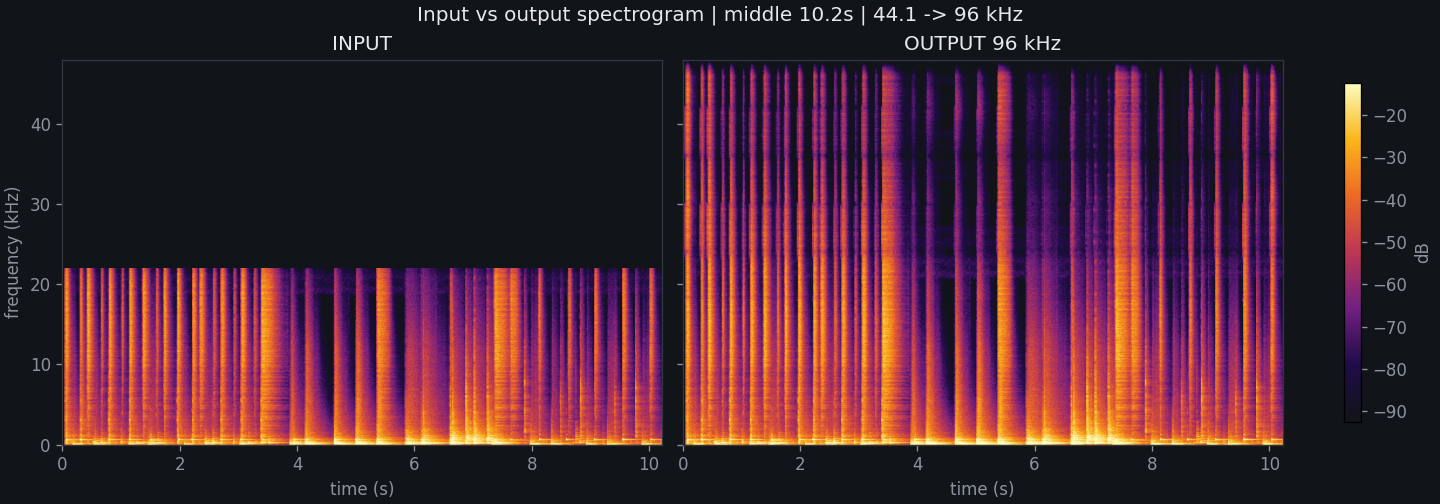
The picture shows about 10 seconds of drums. Time runs from left to right, and frequency goes from low at the bottom to high at the top. Brighter colors show a stronger signal at that moment and frequency; the vertical streaks follow the quick drum hits. Both panels use the same color scale, so you can compare them directly.
A drum hit is more than a low thump: its sharp attack also contains higher frequencies. Some percussion sounds, especially cymbals, can contain energy above 22 kHz. But this 44.1 kHz source has 44,100 samples per second and can represent frequencies only up to roughly half that rate: 22,050 Hz, or 22.05 kHz. This boundary is called the Nyquist limit. The blank area above it on the left shows frequencies the file cannot contain, not proof that the original sound was silent there.
Resoluna creates a 96 kHz version, whose frequency range extends to about 48 kHz. On the right, patterns continue above the CD limit: these are model-estimated high-frequency details generated from patterns in the available recording. They give you a new version of the drum sequence to explore, but they are not the exact missing frequencies retrieved from the original performance or master.
Much of the extension is above typical adult hearing, and a spectrogram alone cannot tell you whether it sounds better. Listen to both versions at similar levels and decide which you enjoy. Different tracks can produce different results; this is one processing run, not a promise for every recording.
Keep the version you prefer—and preserve the source
Store the untouched CD rip as your library copy. Keep the generated FLAC separately if you want to revisit it, compare it on another setup, or simply have an alternate way to listen. If you add it to your library, check the title, artist, and artwork, and correct any missing tags; use a distinct name or folder so you can tell it from the original. If you want more context before trying the beta, read what changes when you upsample a CD rip or use AI upscaling, and see how FLAC and WAV differ for a personal music library.
Hear another version of your music
Try a compatible track in Resoluna, download the 24-bit / 96 kHz result, and decide whether its estimated extension adds something you enjoy.